Keep awake
On this page
Short Leash can keep your computer from going to sleep while nobody touches it: during a long test run, a migration, a big download, or while an agent works through its tasks.
How do I start it?
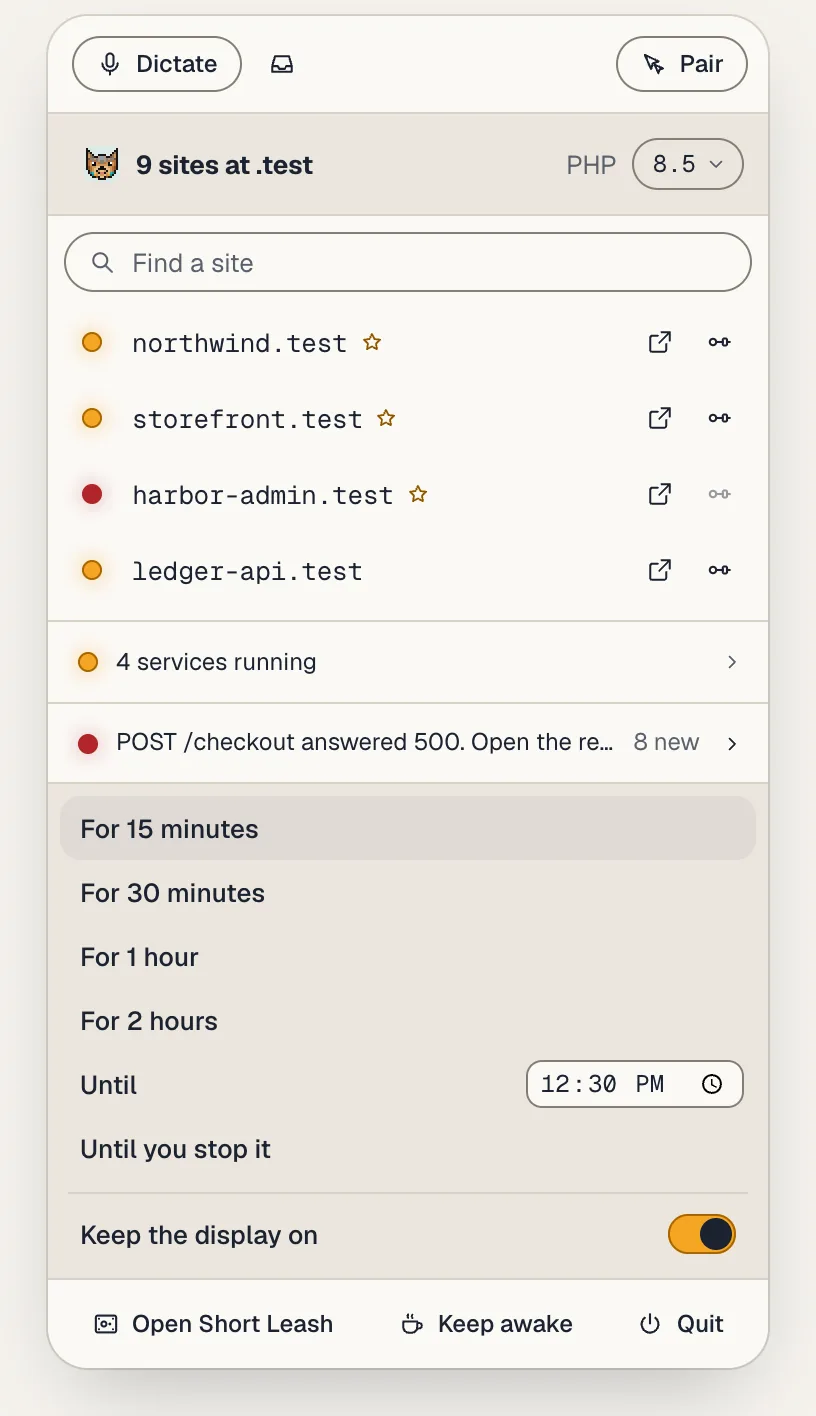
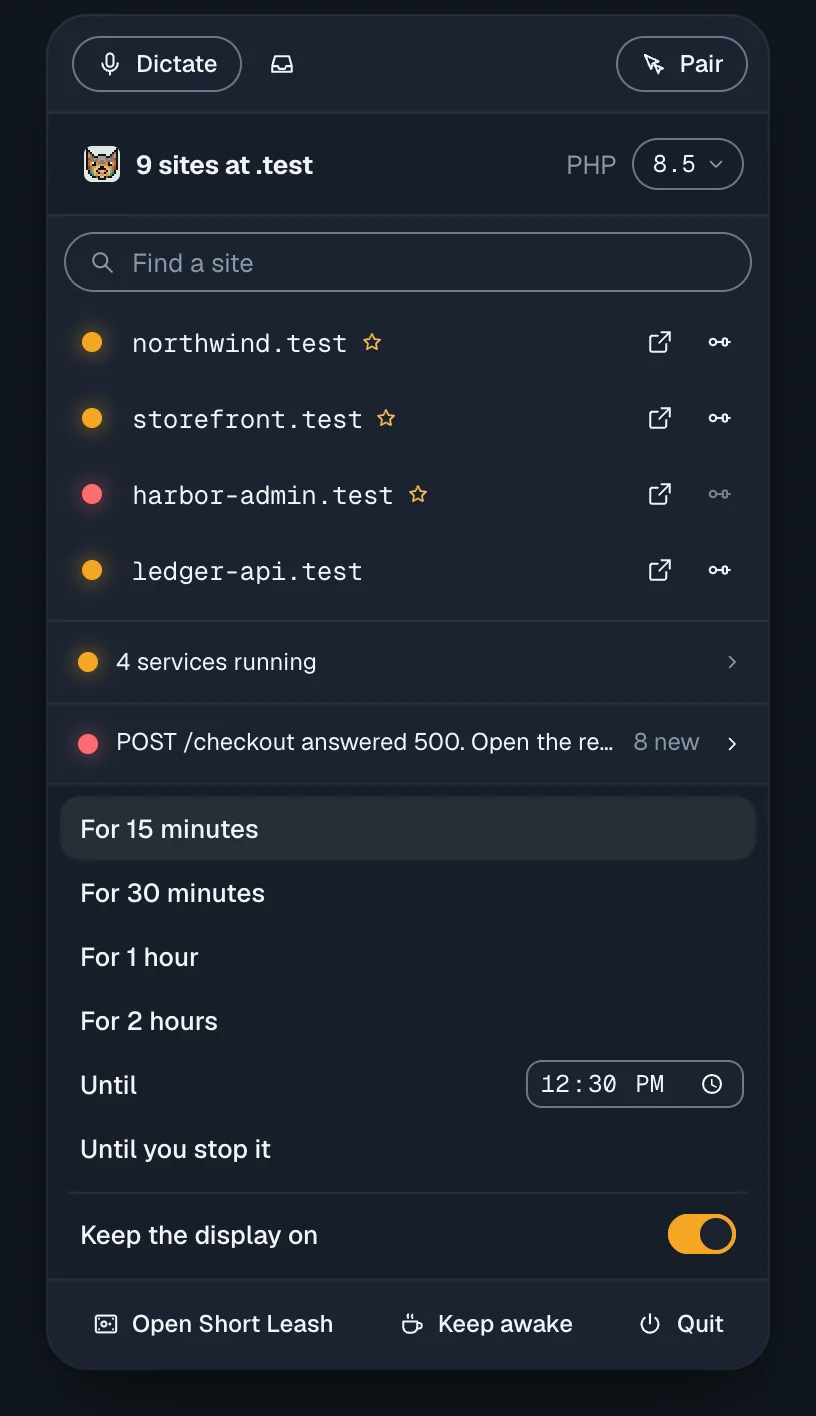
Choose Keep awake at the bottom of the menu bar popover (the notification area on Windows). Its choices open in place, just above it; choose Keep awake again, or press Escape, to fold them away. Then choose:
- For 15 minutes, For 30 minutes, For 1 hour or For 2 hours (the durations are yours to change, below);
- Until a time: type it in the field beside it and choose Until or press Return. A time that has already passed today means tomorrow;
- Until you stop it.
Keep the display on, at the bottom of those choices, decides whether the screen stays on too. Turn it off and the display sleeps as usual while the computer stays awake.
While it runs, the top of the popover shows Keeping awake with the time left (or the time since it started, when it runs until you stop it), when it ends, +30 min and Stop. The paw in the menu bar holds a cup, and its tooltip says how long is left. Choosing a new length while it runs changes the one that's running. When a timed one ends by itself, Short Leash tells you "Your computer can sleep again."
What still makes it sleep?
Closing the lid, choosing Sleep, and a low battery still sleep your computer. Keep awake stops the computer from sleeping when it's idle; no app can stop the sleep you ask for, or the sleep a low battery needs. A Mac with its lid closed stays awake only on power with an external display, keyboard and mouse, as it always does.
Keep awake also ends when Short Leash's background service restarts, an update included. Start it again from the menu.
Where are its settings?
Settings › Startup › Keep awake:
- Keep the display on: the same switch as the one in the menu.
- Show the time left in the menu bar (Mac): the time left beside the paw, like
1:42, while it runs. Off to begin with. - Durations in the menu: up to six, from 5 minutes to 12 hours. Remove one with its ×, or choose Add.
Settings › Notifications › Keep awake decides where "Your computer can sleep again." goes; it reaches your desktop to begin with. Your choices are saved in Short Leash's config.toml.
Can I start it from a terminal?
leash awake 2h
The length can be 90m, 2h, 1h30m or plain minutes. leash awake on keeps it awake until leash awake off, leash awake +30m adds time to the one that's running, and leash awake on its own says whether it's kept awake and for how long. Add --display-off to let the display sleep.
Can an agent keep it awake?
Yes. Coding agents connected through leash mcp (see AI tools) have a keep_awake tool: they can keep the computer awake for a number of minutes or until they stop it, add time, stop it, and ask whether it's on. Short Leash's own chat doesn't use it.