Inside a site
On this page
Opening a site puts you inside it: its own pages appear in a column beside the rail, from its Overview to its terminals and tasks, and every other section stays one click away.
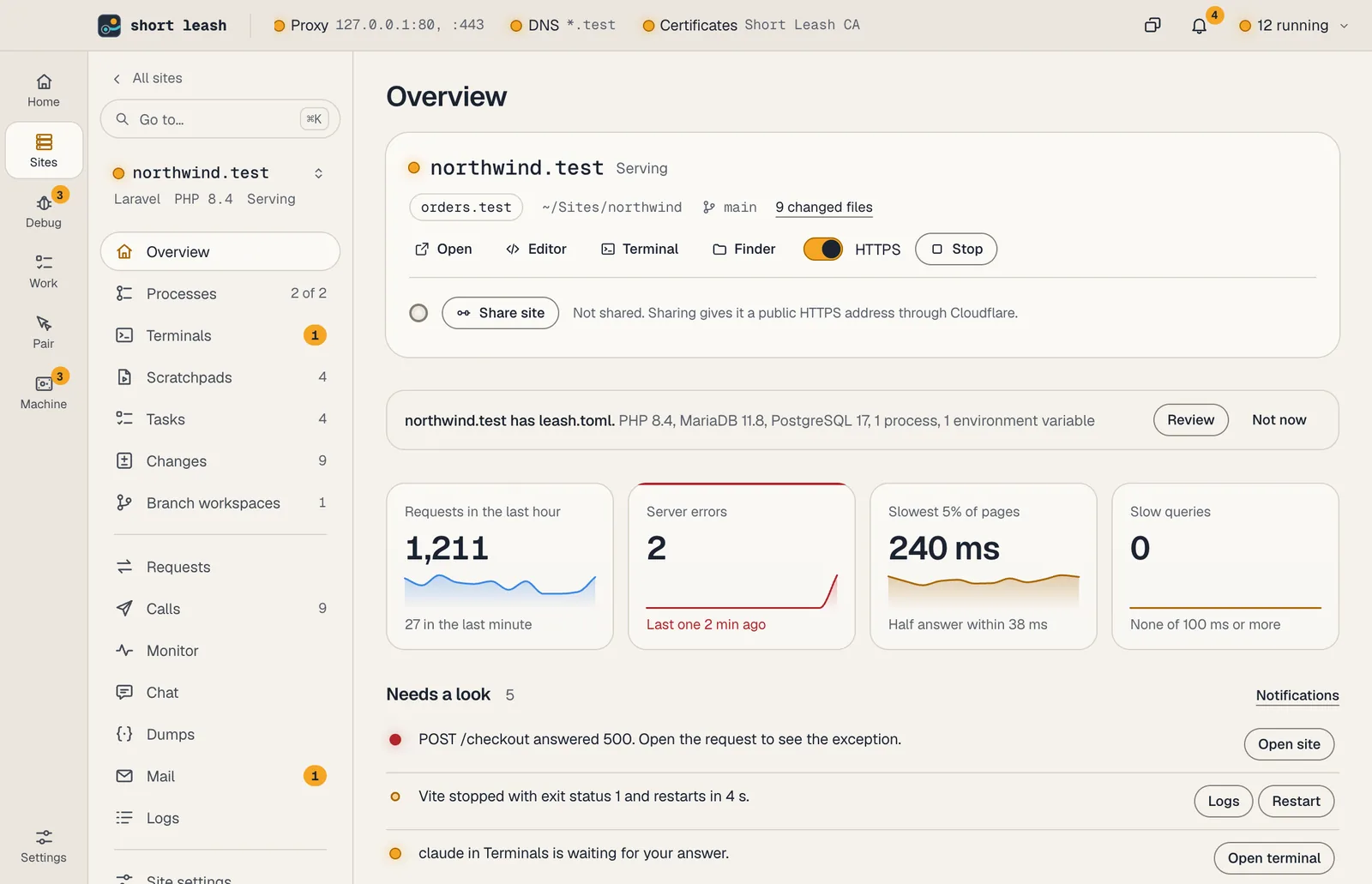
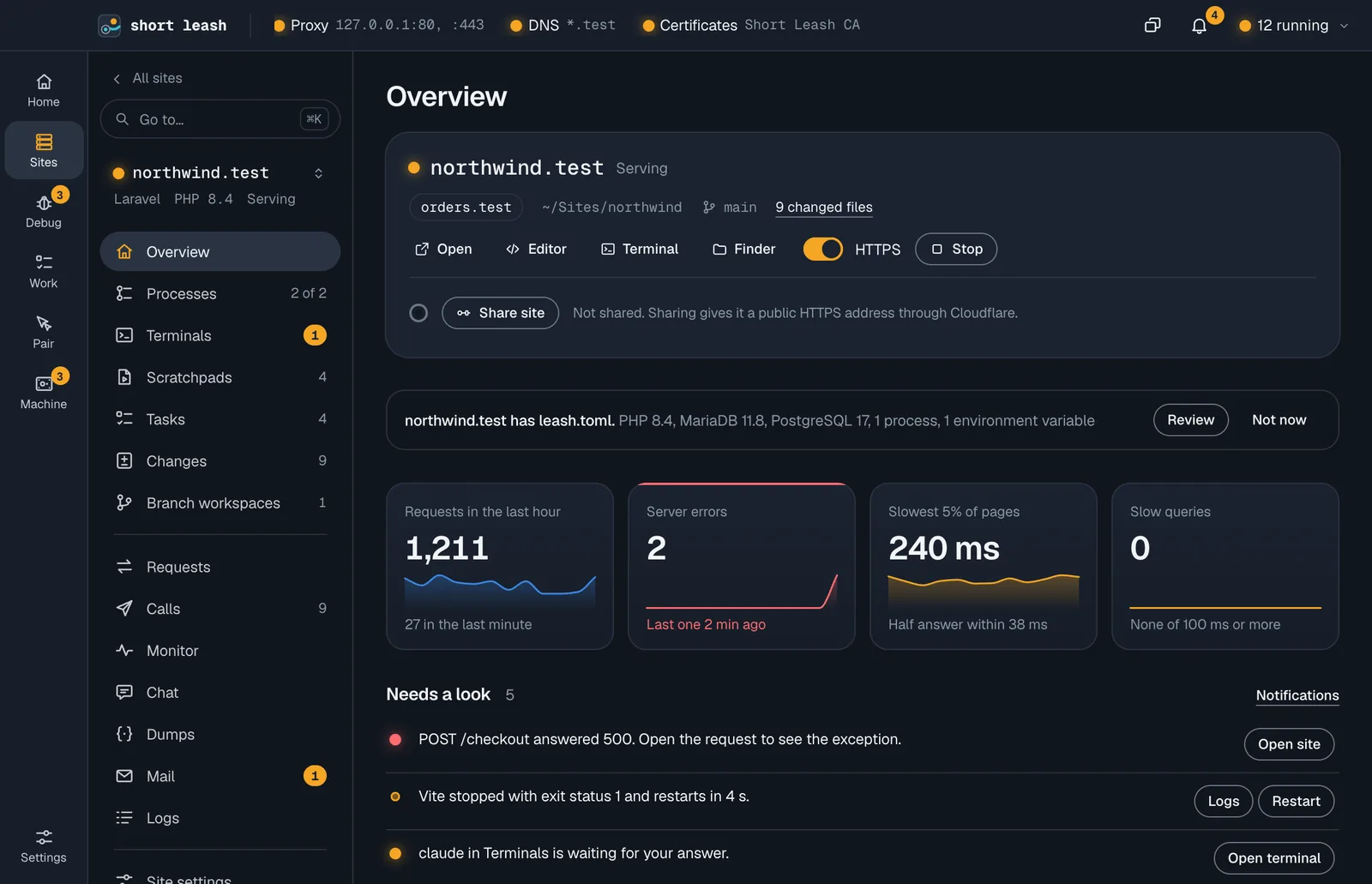
How do I get around the app?
The rail on the left has six places, each icon with its name under it: Home (see Home), Sites, Debug (Requests, Monitor, Dumps, Logs, Mail and Webhooks), Work (Tasks, Notes, Meetings and Chat), Pair and Machine (Services, Runtimes, Backups and Tools), with Settings at the bottom. A place with more than one page lists them in a column beside the rail. Counts sit on the icons: unread mail and held webhook deliveries on Debug, the people in a call on Pair, runtime updates on Machine, and a dot on Settings when a newer Short Leash is ready.
Click a site on Sites to open it. A second column lists its pages:
| Page | What it shows |
|---|---|
| Overview | Who the site is, with its HTTPS switch and Stop, how it's doing over the last hour, and what needs a look |
| Processes | Its queue workers, schedulers and watchers, with the same controls as before |
| Terminals | Shells in the project, and its processes' output |
| Scratchpads | Code you run inside the app, with what came back |
| Tasks | The site's tasks as a list, a board or what agents are doing, shared with coding agents. Its count is the tasks that aren't done |
| Changes | The files changed since the last commit, and their diffs |
| Branch workspaces | Checkouts of other branches, each at its own address, with Merge into … and Remove branch workspace |
| Requests, Dumps, Mail, Logs | The same screens as under Debug, showing this site |
| Calls | Requests you save and send to the site, with what each one caused |
| Monitor | The Monitor for this site: its history, slow routes, N+1s and exceptions |
| Chat | Chat about this site only: every read and action uses it. Shown while chat is on in Settings › Features |
| Site settings | Its address and aliases, runtime, HTTPS and environment |
All sites at the top of the column goes back to the list.
On a narrow window the rail becomes a strip across the top and the site's pages wrap under it.
How do I switch between many sites?
The site's name at the top of its pages opens the site switcher; so does ⌘O (Ctrl+O on Windows) anywhere in the app. It lists:
- Favorites, in the order they have on the Sites screen. The star on a row adds a site to them or takes it out.
- Running sites, with how many there are.
- Recent ones, the sites you opened lately.
Typing searches every site by its address (and by folder name), best matches first, with the typed part underlined. Up and down move, Return opens, Esc closes. The switcher keeps the page you're on, so switching from one site's Terminals opens the other's.
What does Go to do?
Go to… (⌘K, Ctrl+K on Windows), at the top of every hub's column and a site's, finds sites, pages and actions in one list: type north tasks to open northwind.test's Tasks, or pick New terminal in northwind.test, New scratchpad in northwind.test, New call in northwind.test, Add a task to northwind.test or Restart Vite for northwind.test. Inside a site, ⌘1 to ⌘9 open its first nine pages in order, from Overview (⌘1) through Changes (⌘6), Branch workspaces (⌘7), Requests (⌘8) and Calls (⌘9); the pages after them have no shortcut. ⌘T opens a new terminal.
What's on a site's Overview?
From the top:
- The site itself: its address and aliases, folder, Git branch and changed files (which open Changes), then Open, Editor, Terminal, Finder and Stop, and Share site.
- Four tiles for the last hour, each with a trend line over 5-minute steps: requests, server errors, how fast the slowest 5% of pages answer, and slow queries. A tile with something wrong has a red edge on top. Each opens its screen.
- Needs a look: the site's unread notifications, and checks Short Leash makes, each with a fix. For a Laravel site, Run migrations runs
php artisan migrate --forcewhen some haven't run, Use with the site's address setsAPP_URLto it, and Use with the site's name setsMAIL_USERNAMEto it when the site's mail would land in another inbox and so not show under the site. When the site's project file needs you, it says so here too. - Processes with their uptime and memory, and Recent requests.
- Project: framework, PHP and how it's served, Node and where its version comes from, Composer, Git, when the certificate renews, and Xdebug.
- Uses, read from the site's
.env: its database, cache, mail and broadcasting, each with its lamp and a way to open or start it. Create database makes the site's database on MySQL, MariaDB or PostgreSQL, shows its URL and can add it to the.env(see Databases). - Tasks: up to three of the site's open tasks, blocked ones and those waiting for your review first, then those in progress, then those to do, with the same lamps and Needs review as on the Tasks page. Tick one to mark it done, with Undo; All tasks opens Tasks.
- Just caught: the newest mail and dumps from the site.
Where are terminals, scratchpads and tasks?
Terminals opens shells in the project with the site's runtimes first on the PATH, and its processes' output read-only; they keep running when the window closes. See Site terminals. Scratchpads run code inside the app, with its models, database and helpers ready, and show the value, dumps and queries that come back; see Scratchpads. Tasks is the site's board, where you plan and review and coding agents claim tasks, report progress and hand finished work back; see Tasks. Changes lists what changed since the last commit with each file's diff, and stages, unstages or discards each file; see A site's changes. Calls saves and sends requests to the site and shows the dumps, queries and log lines each one caused; see Calls.
How do Requests, Dumps, Mail and Logs work inside a site?
They're the same screens as under Debug in the rail, with every filter they have, showing only this site. The site's name is a pill next to the title: remove it to see every site without leaving this one, and Only northwind.test puts it back. Mail shows the messages the site sent (its inbox, or mail from or to its address); Logs lists the site's own server, processes and share.
Where are notifications?
The bell in the power rail, beside the running count, shows how many you haven't read and opens them grouped by site; a site's own are also under Needs a look on its Overview. Choose which kinds reach the bell or your desktop in Settings › Notifications. See Notifications.
What happens while Short Leash starts?
Before Short Leash answers, Sites shows it starting step by step: Short Leash, Certificates, DNS, Proxy, then Sites. Each lamp lights as that part reports it's ready, and the lamps in the power rail light with them; then your sites appear. If it takes more than a few seconds, a line says why: Short Leash reads your login shell once at start, and a slow shell setup holds it up.
To keep a page in view while you work on another, right-click it and choose Pop out or a Dock edge: see Panels and floating windows.